
Photo Censor Tool | Pixelate Images Easily
- Home
- Photo Censor Tool | Pixelate Images Easily
👁️ Photo Censor Tool
Please load an image to begin.
Instructions: 1. Load image. 2. **Click and drag** on the image to select an area (the red box is the selection). 3. Click 'Apply Censor'. You can draw **multiple areas** before downloading.
Shortcode Handler for the Photo Censor Tool. Implements client-side image loading, selection, multiple pixelation, and reset
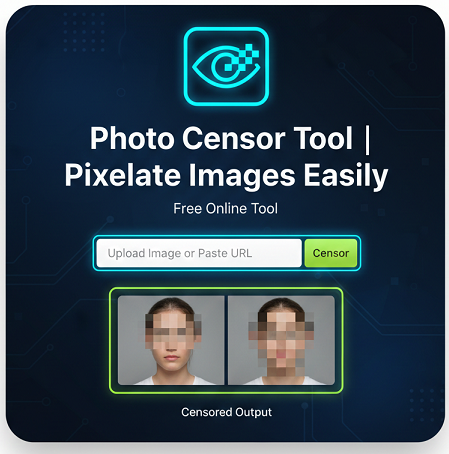
Protect sensitive images and maintain privacy with our Photo Censor Tool. This online solution allows you to pixelate, blur, or censor parts of any image directly in your browser with ease and precision.
What Is This Tool?
The Photo Censor Tool is a WordPress-ready online application that enables users to edit images client-side, focusing on censoring specific areas. Whether you need to hide faces, confidential content, or sensitive information in photos, this tool makes it simple without compromising image quality.
How the Tool Works
This tool works entirely on the client-side, meaning all image modifications happen directly in your browser. Users can select image areas, apply multiple pixelation effects, and reset edits whenever needed. It integrates smoothly with WordPress via shortcode, allowing bloggers, agencies, and developers to easily embed it into their sites.
Key Features
- Client-side image loading for fast and secure processing
- Multiple area selection for pixelation or blurring
- Reset functionality to undo all edits instantly
- WordPress shortcode integration for seamless embedding
- Easy-to-use interface requiring no technical skills
- Supports various image formats including JPG, PNG, and GIF
- High-quality pixelation to maintain image clarity
- Safe and private: no images are uploaded to external servers
Why Use This Tool?
Online image censorship is essential for maintaining privacy, complying with regulations, and protecting sensitive information. Our tool provides an intuitive and efficient way to handle image edits, making it ideal for content creators, marketers, and developers who need to manage images safely on WordPress or other platforms.
Step-by-Step Usage Guide
- Upload your image directly from your device using the upload button.
- Select the area(s) of the image you wish to pixelate or blur.
- Apply the pixelation effect; adjust intensity as needed.
- Repeat selection and pixelation for multiple areas if required.
- Click the reset button to undo changes if necessary.
- Once satisfied, download the edited image or use the WordPress shortcode to embed it directly into your site.
Benefits for SEO and Marketing
- Enhances website content quality with safe and compliant images
- Supports privacy-compliant image sharing
- Improves user trust and engagement on blogs and landing pages
- Allows marketers to demonstrate transparency without exposing sensitive information
- Boosts organic traffic by integrating interactive tools directly on your website
Use Cases
- Bloggers: Censor personal information or sensitive content in images before posting.
- SEO Experts: Optimize images for content marketing while protecting sensitive data.
- Agencies: Provide clients with professional, safe image-editing tools on their websites.
- Developers: Embed image pixelation functionality into WordPress sites using shortcode integration.
Frequently Asked Questions (FAQ)
1. How do I pixelate an image online?
Upload your image, select the areas you want to censor, and apply the pixelation effect. You can adjust intensity as needed and download the final image.
2. Can I censor multiple parts of an image at once?
Yes, the tool allows multiple area selection, enabling you to pixelate or blur several parts of your image independently.
3. What image formats are supported?
The Photo Censor Tool supports JPG, PNG, and GIF formats for both upload and download.
4. Is this tool safe for private images?
Absolutely. All editing happens client-side in your browser, ensuring your images are not uploaded to any external servers.
5. Can I undo my edits?
Yes, the reset button allows you to undo all changes and start over without affecting the original image.
6. How do I embed this tool in WordPress?
Simply use the provided shortcode in any post or page to embed the tool directly into your WordPress site.
7. Can I control the intensity of pixelation?
Yes, the tool offers adjustable pixelation levels for precise editing of your images.
8. Is any technical knowledge required?
No, the tool is user-friendly and intuitive, designed for both beginners and professionals.
9. Can I use this tool for marketing images?
Yes, it is ideal for marketers needing to protect sensitive information while sharing visuals online safely.
10. Does this tool affect image quality?
The pixelation effect is applied carefully to maintain the rest of the image quality, ensuring professional results.
Conclusion
The Shortcode Handler for the Photo Censor Tool is an essential online utility for anyone looking to protect image privacy efficiently. Its client-side operation, multiple pixelation selection, and WordPress integration make it a must-have tool for bloggers, agencies, marketers, and developers who need safe and effective image editing capabilities.
Related Tools
- AI Image Background Removal – Powerful Reasons Why You Should Stop Paying for Background Remover Tools
- All Email & Phone Extractor from any URL – Extract Contacts Easily
- All Email Extractor from Any URL – Free Online Tool
- Base64 & URL Encode/Decode Tool – Free Online Converter
- Check If URL Is Allowed in Google Search Results
- Disclaimer
- Domain Expiry Checker – Check Domain Expiration Date
- Domain Name Extractor in Paragraph, Text, URL | SEO Tool
- Free AI Image Background Removal Tool Online
- Free AI Text to Speech Tool
- Free Color Picker & Gradient Generator Tool Online
- Get Meta Data Information of Any Website Online
- Google Index Checker – Check Website Index Status
- Google Review Link Generator – Create Direct Review URLs
- Image Editor That Actually Works – Crop, Text, Filters & Stickers
- Image Resizer Tool – Resize Images Online for Free
- Interactive Anchor Text & Hyperlink Generator Tool
- JSON Formatter, Validator & Minifier Tool Online
- Keyword Difficulty Checker Pro Tool - Analyze & Improve SEO Rankings
- Keyword Rank Checker Tool - Track Your SEO Rankings Accurately
- Live Canonical Checker AI Tool – Check Canonical Tag in head
- Open Graph & Twitter Card Tags Checker Tool Online
- Page Score, HTML Tag & Scheme Analysis
- Photo Censor Tool | Pixelate Images Easily
- Privacy Policy
- Remove Line Breaks & Extra Spaces Tool Online
- Schema Markup Generator Shortcode - Full Version | SEO Tool
- Secure Password Generator Tool – Create Strong Passwords
- SEO Title & Meta Description Tester | SERP Preview Tool
- Snow Calculator Expectation – Snowfall Forecast Tool
- Speak to Text & Text to Speech – Free AI Voice Over Generator with Download (No Signup)
- Terms and Conditions
- Text Case Converter Tool – Change Uppercase & Lowercase
- Text Counter – Word, Character & Sentence Counter Tool
- URL Link Extractor & Hyperlink Counter Tool Online
- URL Shortener – Create Clean, Trackable Short Links
- Website Header Response Checker – HTTP Status Tool
- XML & HTML Sitemap Generator – Free Download Tool
- YouTube Video Details & Thumbnail Downloader Tool
Read Our Latest Insights
We help you see the world differently, discover opportunities you may never have imagined and achieve results that bridge what is with what can be.